Remove any background in one click.
Drop in an image and Fawna lifts the subject out with a clean edge. Keep it transparent, drop in a new background, or extend the scene, all in the same studio.
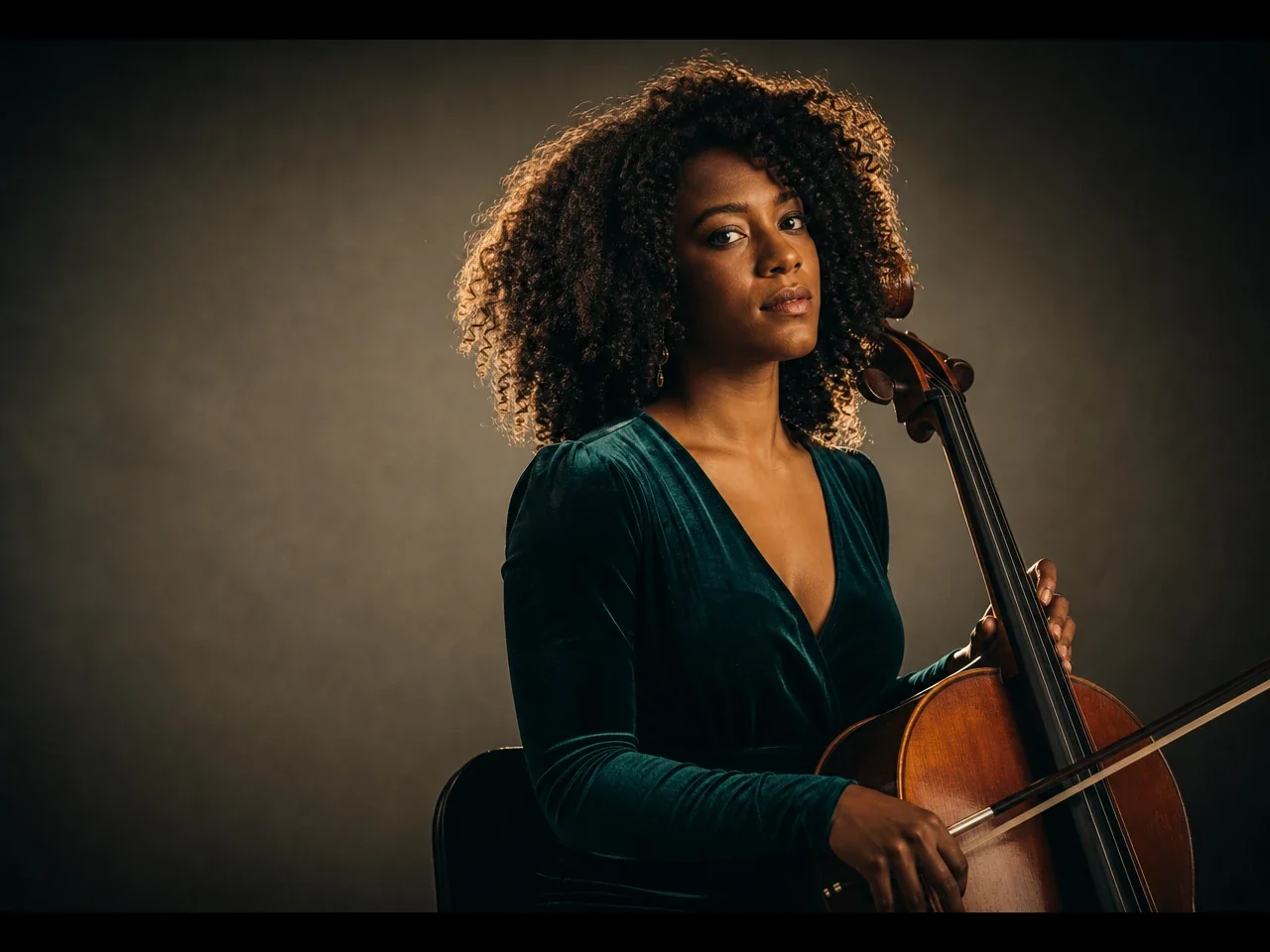 Original
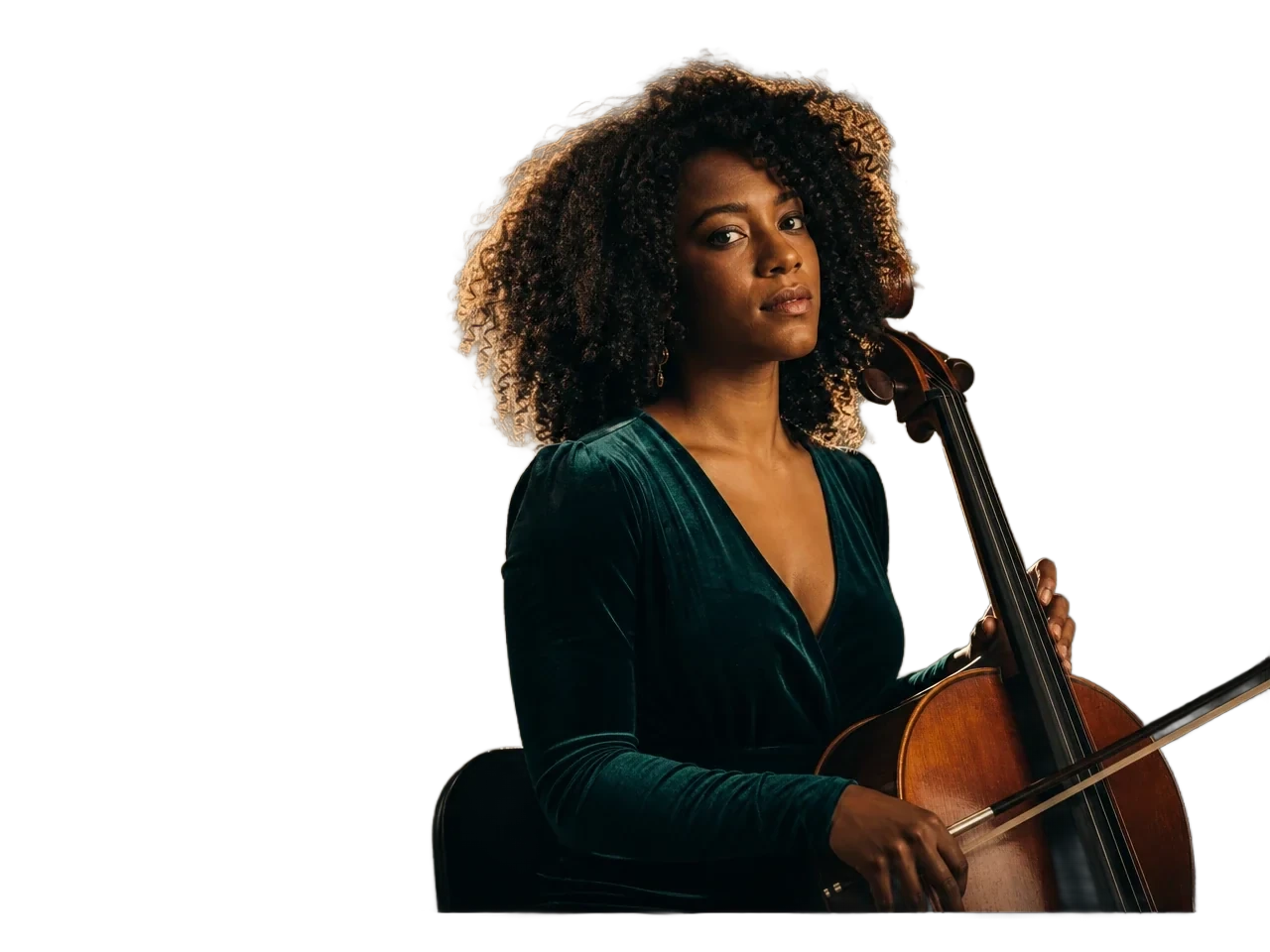 Removed
Remove, replace, or extend
The same tool gives you three moves: take the background out, swap in a new one, or grow the scene past its edges.
Remove the background
One click lifts the subject out onto a clean, transparent background.
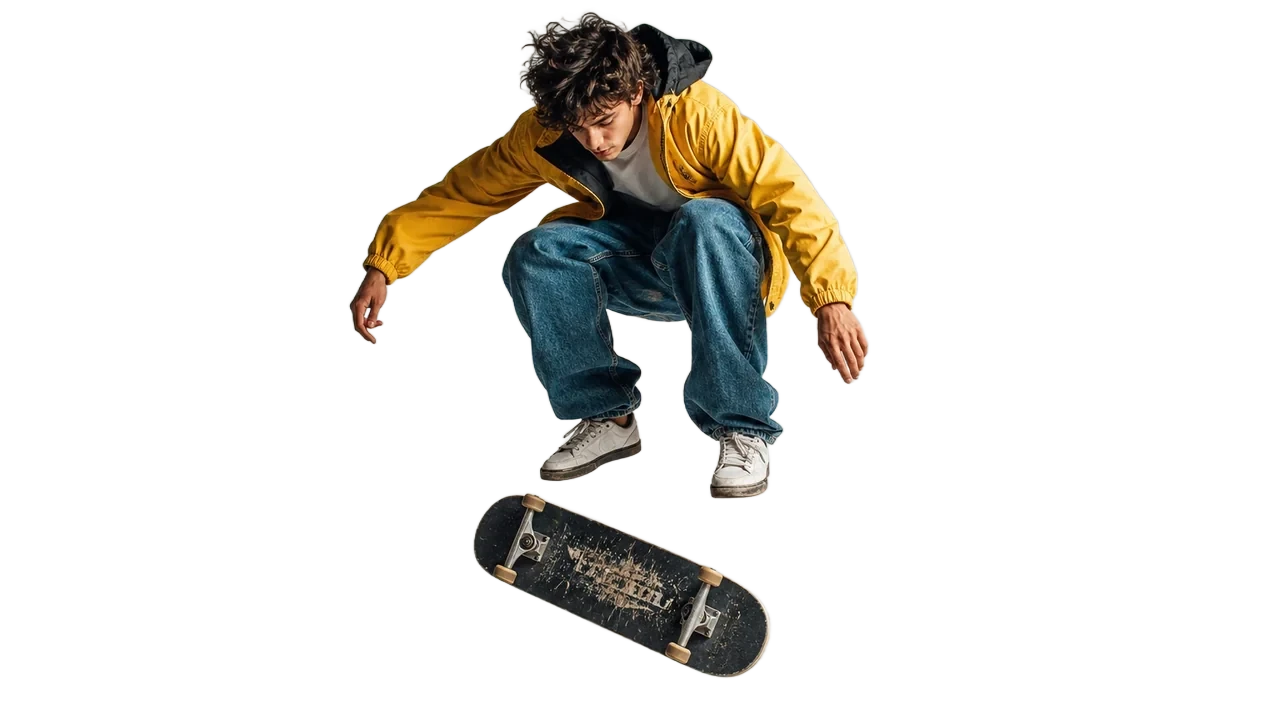
Replace the background
Generate a brand new background behind your subject from a prompt.

Extend the scene
Outpaint past the edges to reframe for any aspect ratio without cropping.
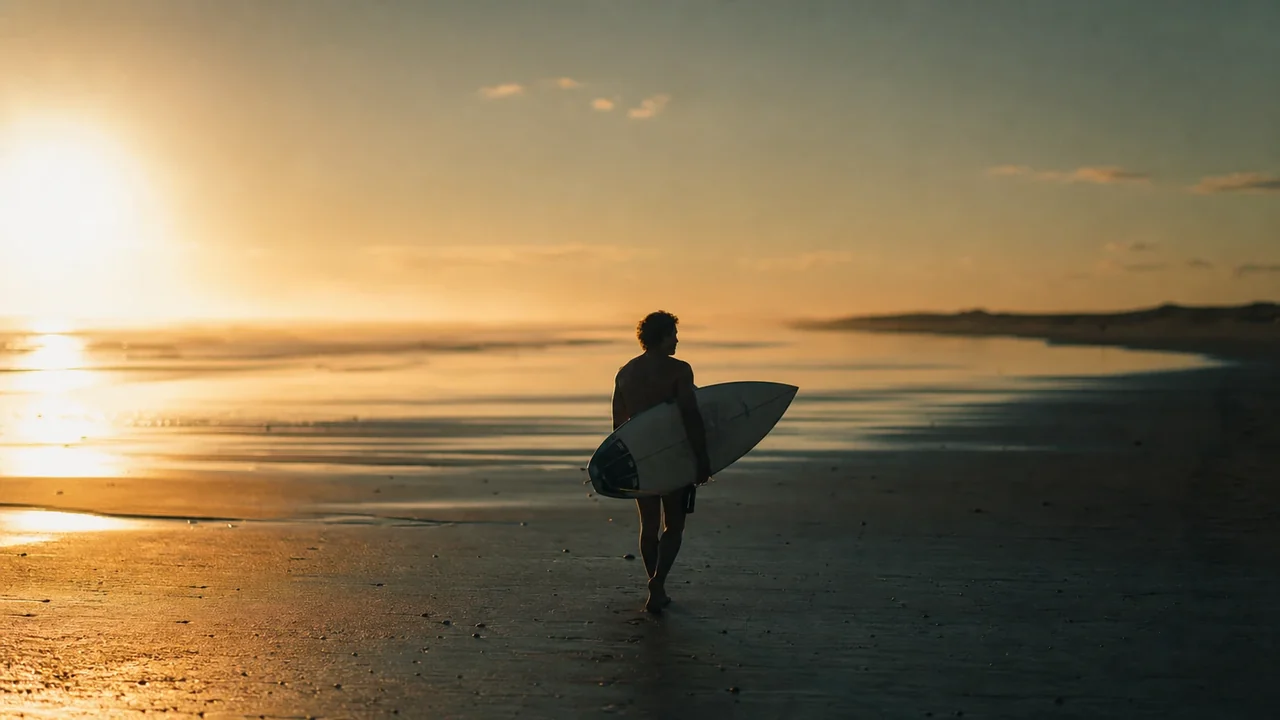
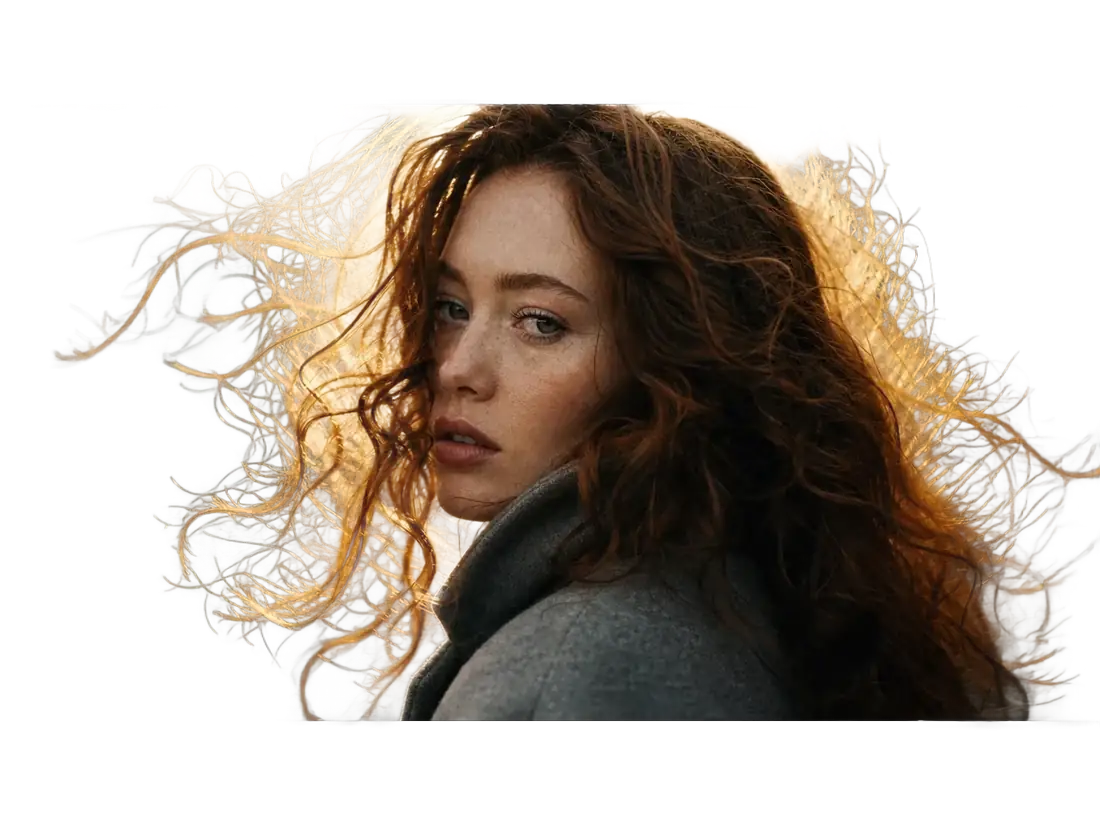
A crisp edge, even on hair and detail.
Fawna traces the subject precisely so you get a usable cutout the first time, no manual masking or fuzzy halo. Download a transparent PNG, or keep working in the studio.
- One-click subject detection
- Clean edges on hair, fur, and fine detail
- Transparent PNG, ready to place anywhere
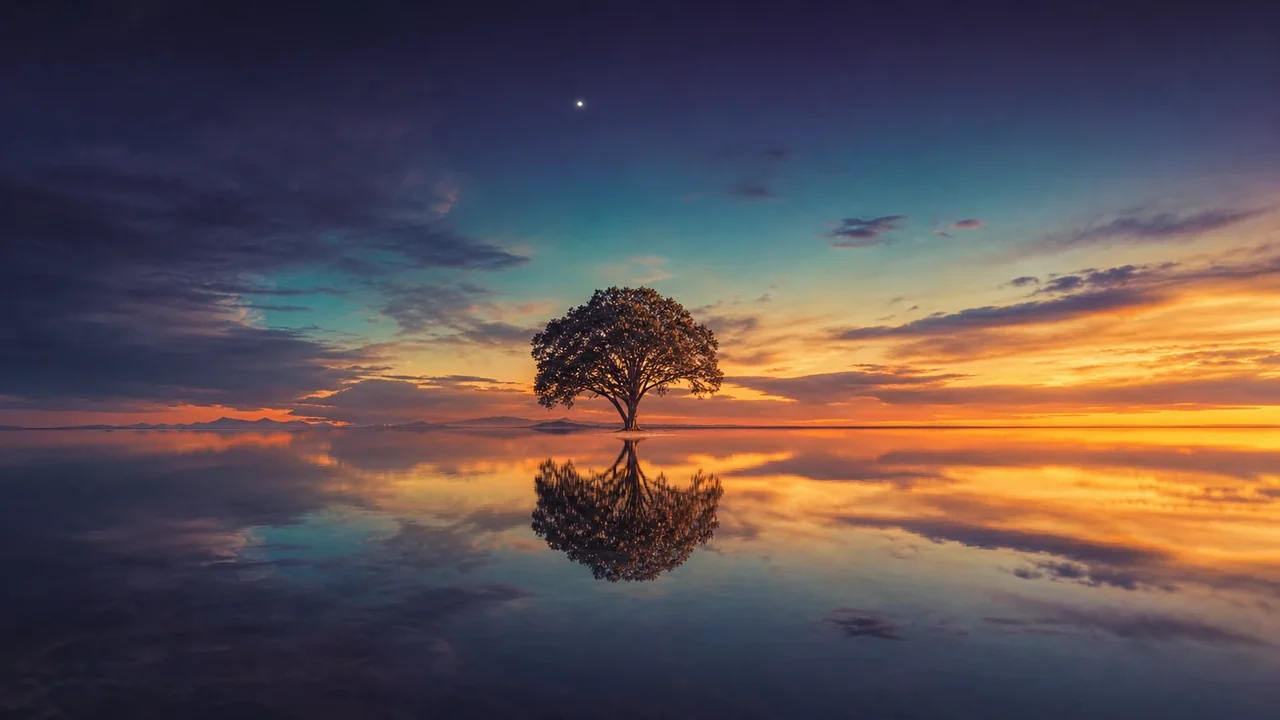
Put your subject anywhere.
Once the background is gone, drop in a new one from a prompt, or extend the existing scene to fill a wider or taller frame. Reframe a portrait into a banner without cropping the subject.
- Generate a new background behind the subject
- Outpaint to extend the scene for any aspect ratio
- Everything lands in your asset library, reusable
Cutouts that go straight to work
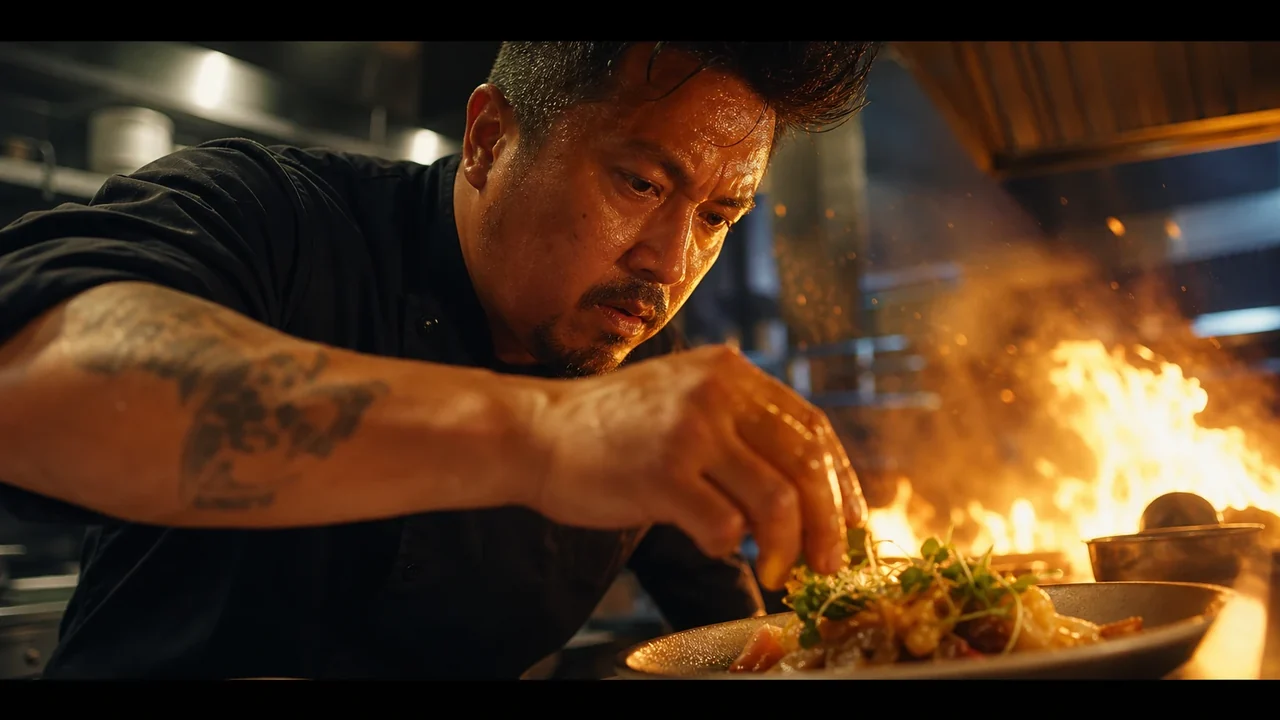
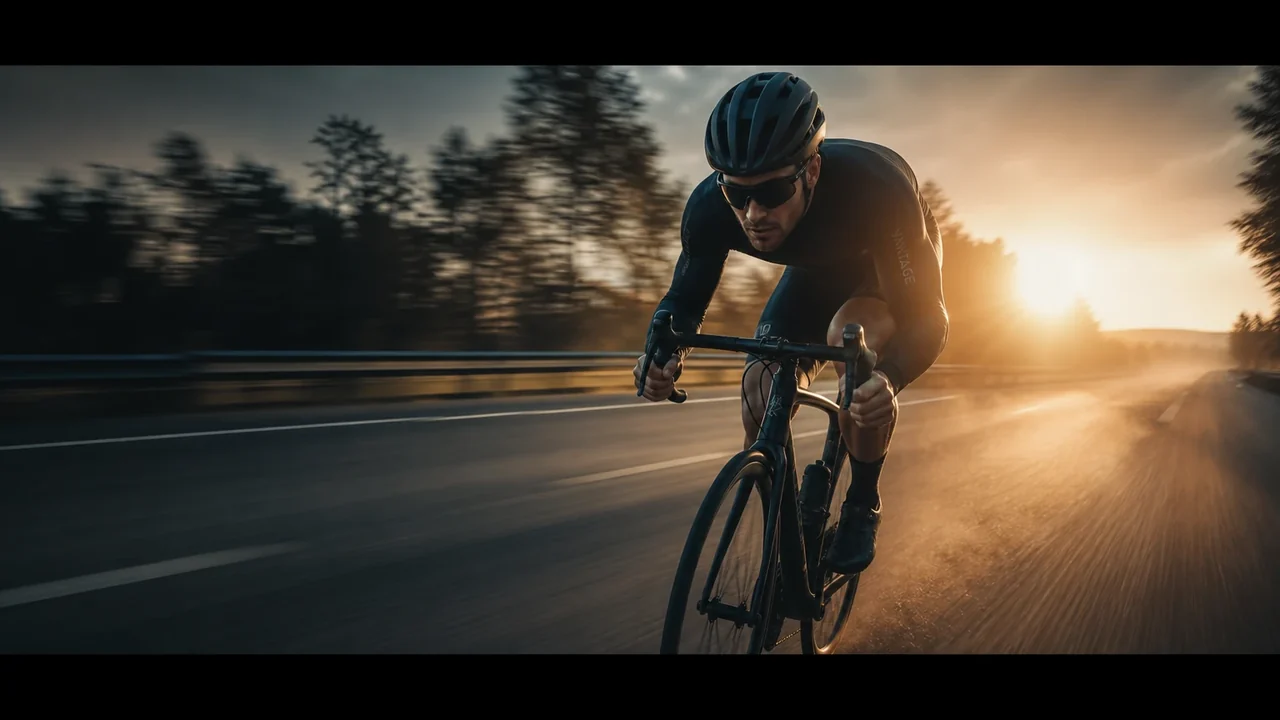
Removing a background is rarely the end. In Fawna, the result is one step from a thumbnail, a scene, or a finished cut.

Background remover questions
How does the background remover work?
Can I replace the background instead of just removing it?
What format do I get back?
Does it work on hair and fine detail?
Where does the cutout go after?
Cut out your first subject
Drop in an image, remove the background, and put your subject exactly where it belongs.